Guide · October 2026
Why AI try-on results look wrong, and how to get a good one
Bent arms, a face that isn’t quite yours, a jacket that floats. Most bad try-ons come from the two images you give the app, not from bad luck, and most are easy to fix.
It is the top complaint about try-on apps: in the 1–2 star App Store reviews we read, 42% of Doji’s (14 reviews) and 20% of Gensmo’s (25 reviews) said the results didn’t look real.
Source: 1–2 star App Store reviews, US and UK, read October 2026. Small samples: read them as a hint.
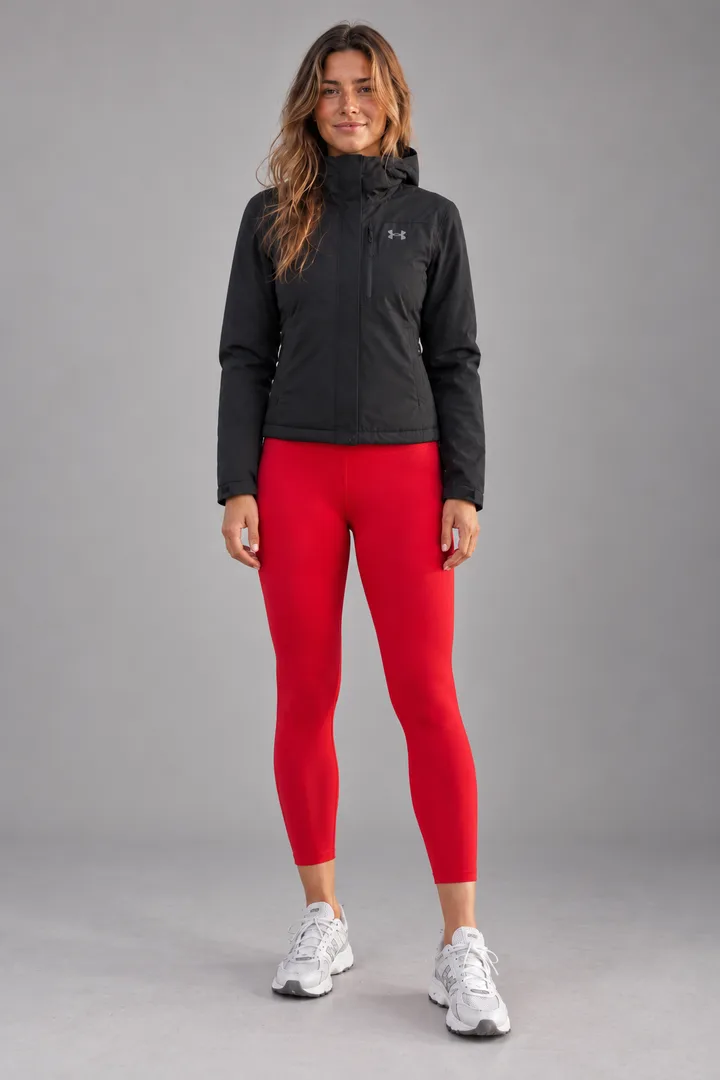
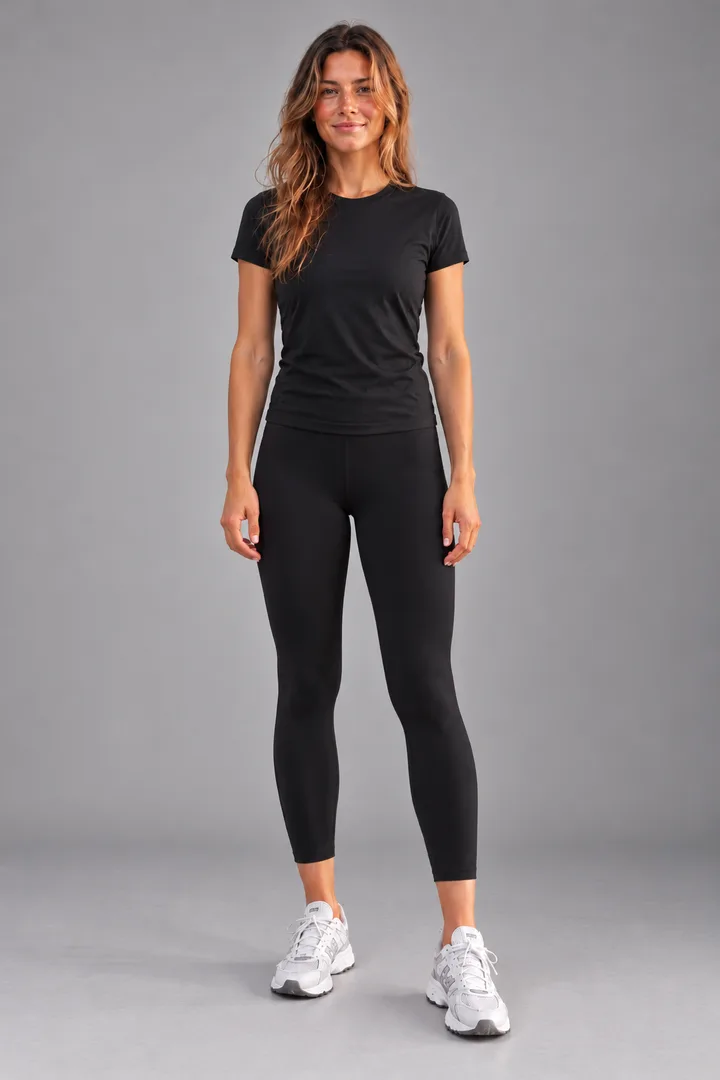
Eight fixes, in order of how much they help
- 01
Show your whole body
The AI can only dress what it can see. If your feet are cut off it has to invent your legs and shoes, and invented parts are where results go wrong.
- Head to feet in the frame, with a little space around you.
- A mirror selfie works if your whole body is in it.
- 02
Face the camera and stand straight
Crossed arms, a twisted pose or a phone in front of your body hide the shape the clothes have to follow, so sleeves bend and hems land in odd places.
- Stand facing the camera, arms loose at your sides.
- Keep your face visible: the result keeps it, so it still looks like you.
- 03
Use even light and a plain background
Hard shadows and busy rooms make it harder to tell where you end and the background starts. Strong coloured light also tints the new clothes.
- Daylight from a window in front of you, not behind.
- A plain wall or door behind you.
- 04
Wear fitted clothes in your photo
A big coat or a long dress hides your shape, and the result tends to keep its volume. Fitted clothes let the new outfit sit the way it would on you.
- A t-shirt and leggings or slim trousers are ideal.
- One person in the photo, nobody else.
- 05
Give it a clear picture of the clothes
The garment image is the other half of the result. A blurry, tiny or half-hidden piece gets guessed, and the guess shows.
- The whole garment visible, on a model or laid flat.
- The largest product photo the shop has, not a thumbnail.
- One piece per image; add shoes and a jacket as their own images.
- 06
Crop screenshots before you add them
Prices, buttons, “Sale” badges and text over the photo can end up printed on the clothes, or confuse which item you meant.
- Crop to just the garment.
- Pick a photo without text written across it.
- 07
Pick the right mode for swimwear
Swimwear and other revealing pieces need a mode made for them. In Fitty, swimwear and revealing photos only work in Swim & more.
- Use Swim & more for bikinis, swimsuits and lingerie (2 credits).
- Use Outfit for everything else (1 credit).
- 08
Expect a preview, not a fitting
An AI try-on shows how a style, colour and cut look on you. It doesn’t know your measurements or the size you’d order, so it can’t tell you whether a medium will be tight.
- Use it to judge colour, length and silhouette.
- Check the shop’s size guide for fit.
Ready with a good photo?
Fitty checks your photo before it starts and tells you if something will get in the way. A look that fails never costs a credit. Try it on your photo.
FAQ
Why does my AI try-on change my face?
Usually because the face is small, turned away or in shadow in the original photo, so the AI has little to keep. Use a photo where you face the camera in even light and your face is clearly visible.
Why is the outfit wrong or missing pieces?
The garment image was probably unclear: cropped, tiny, covered by text, or showing several items at once. Use one clear image per piece and crop screenshots to just the garment.
Does a bad result cost me a credit in Fitty?
A result that fails never costs a credit. If a look comes out but you don’t like it, try again with a better photo using the steps on this page.
Can AI try-on tell me my size?
No. It shows how a piece looks on you, not how it fits. Use it for style, colour and length, and the shop’s size guide for the size.